I built the photo workflow around the evidence the next step requires.
Each device gets a shot list. Files upload while the technician reviews extracted specs, then the app finalizes one named Drive folder.
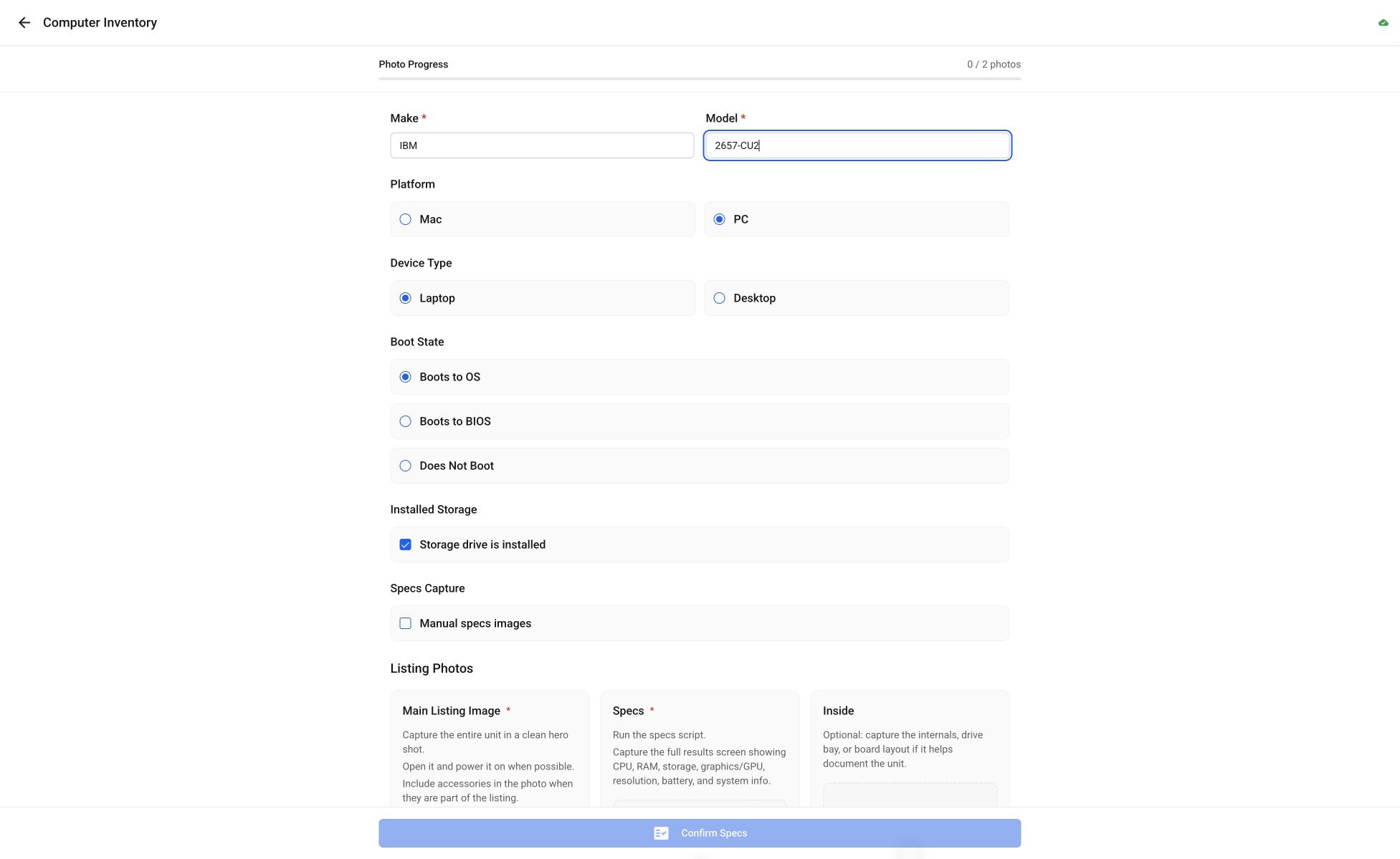
separate capture modes
Computer, mobile device, and general upload
app upload limit
Oversized video gets a specific fallback
staged folder carried through finalization
Retries do not create a new folder
AI-written make or model anchors
The technician enters those fields
Each device type has different evidence requirements.
Photos used to depend on memory: get the hero image, the ports, the label, any damage, the specs screen, and whatever else matters for that device. Missing one of those is usually discovered later, when the item has moved and somebody starts the listing.
Computer Inventory, Mobile Device Inventory, and General Upload have separate rules. A powered-off phone skips the settings screen. A cellular phone requires carrier-lock evidence. A booting computer gets a specs path.
The technician enters make, model, device state, and capabilities. Confirm Specs creates a temporary Drive folder and starts the upload. The review dialog shows progress, extracted values, confidence, and the source photo for each field. Finalization renames the folder and writes predictable filenames and metadata.json.
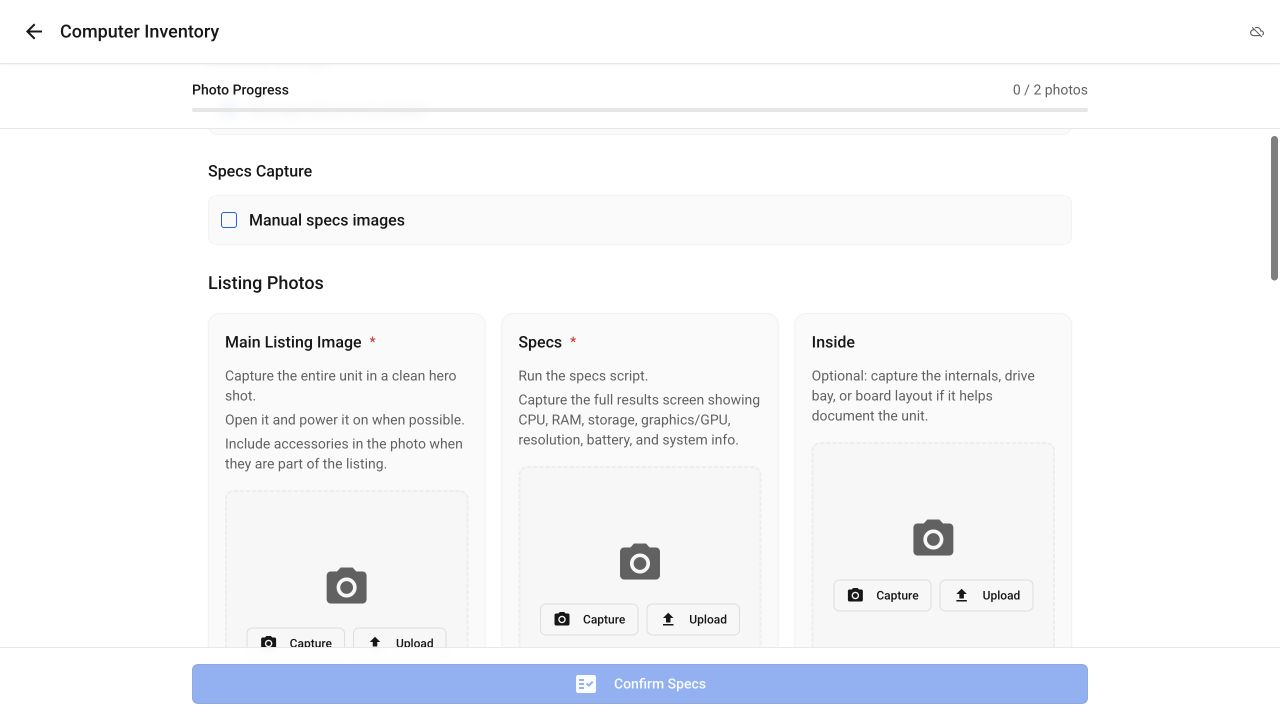
Phones and tablets needed their own evidence rules.
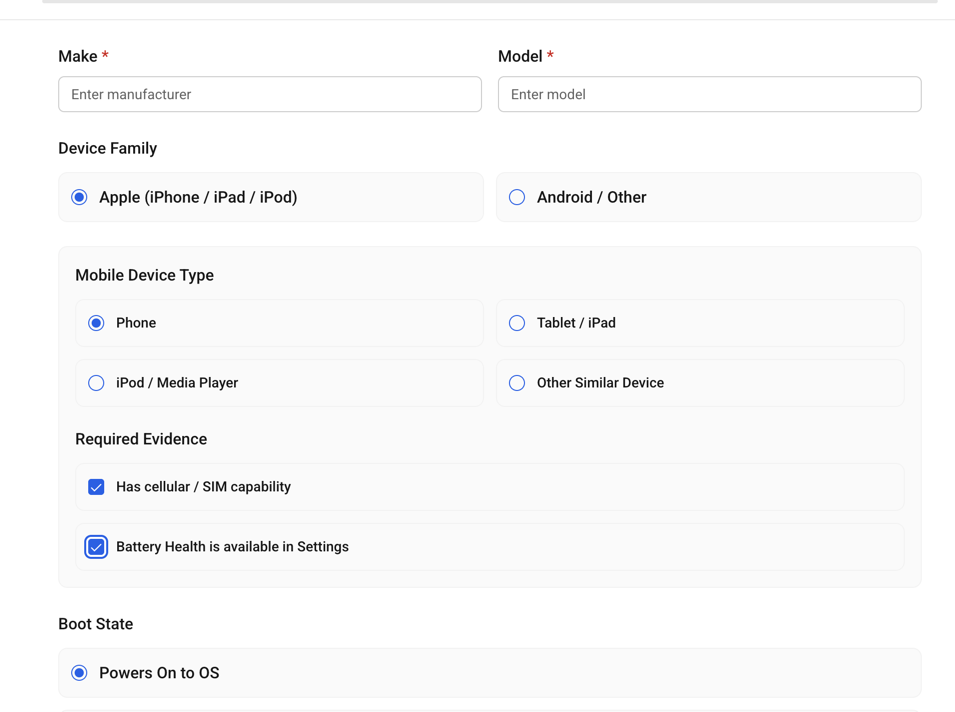
I first treated mobile as a variation inside Computer Inventory. That hid decisions that matter for phones and tablets, so Mobile Device Inventory became a top-level mode.
The current choices cover Apple or Android, phone, tablet, media player, and other devices. Cellular capability adds carrier-lock evidence. Battery-health availability adds a battery screen. Device Info is required when accessible. A sticker or serial photo remains required even when the device does not boot.
A custom browser camera caused cropping, orientation, transition, and EXIF problems on iOS. I removed it and restored the native file input technicians had been using successfully.
Partial uploads now resume in the same Drive folder.
An oversized video or later-file error could occur after several photos had reached Drive. The first interface reported one upload failure, leaving the technician unsure which files had arrived.
The screen now lists uploaded files and the specific failure. Retry uses the same folder and skips confirmed filenames. For video over 100 MB, the instruction is to finish the app upload and add the video directly in Drive.
One iPhone draft bug created the folder and failed on the first photo.
In one production incident, the first four uploads worked. Later attempts created the staging folder but sent no photo. Google access was fine.
The draft restored its saved image through fetch(data:), which iOS WebKit rejected with Load failed. Converting the data URL directly to a blob in chunks fixed the upload.
What remains unmeasured or unresolved.
- Google authorization and approved-folder access still have to be current.
- Files above 100 MB cannot use the app upload path.
- AI extraction can time out, return invalid data, or omit a field; human review remains required.
- Current correction rate, upload failure rate, weekly volume, time saved, and model cost are unknown.